
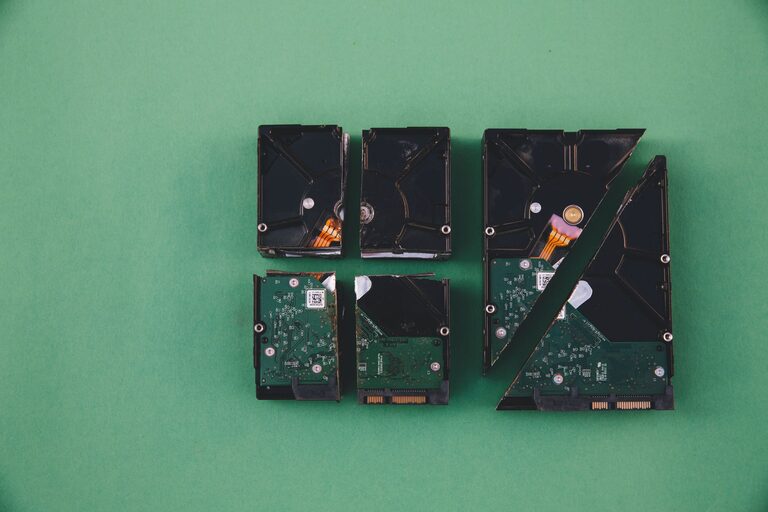
Backing up your photos and files is one of the best ways to protect your important memories and documents. Whether it’s family photos, work documents, or personal projects, losing data due to accidental deletion, hardware failure, or theft can be frustrating and costly. Fortunately, creating backups is easier than many people think. This guide will walk you through simple and reliable methods to back up your data effectively.
Why Backing Up Your Data Matters
We live in a digital age where most of our valuable information is stored on electronic devices. From smartphones to laptops, these devices can fail at any time. When that happens, any data that’s not backed up could be lost forever. This is why regular backups are essential:
– Protect against hardware failure.
– Safeguard data from accidental deletion.
– Recover files after malware or ransomware attacks.
– Easily transfer data to new devices.
Types of Backup Methods
There are several ways to back up your photos and files. The best method depends on your needs, preferences, and the amount of data you want to protect. Here are the most common backup methods:
1. External Hard Drives and USB Drives
Using an external hard drive or USB flash drive is a popular way to store backup copies offline. These devices are relatively inexpensive and can hold large amounts of data. To back up files:
– Connect the drive to your computer.
– Copy or drag your important folders and files to the external drive.
– Safely eject the drive when finished.
– Store it in a secure location, ideally separate from your computer.
2. Cloud Storage Services
Cloud backup services allow you to upload your data to online servers, giving you access from any internet-connected device. Popular services include Google Drive, Dropbox, OneDrive, and iCloud. Benefits include:
– Automatic syncing and backup.
– Easy file sharing.
– Protection from physical device damage or theft.
To use cloud storage, simply create an account, install the app on your device, and select the folders you want to back up.
3. Network Attached Storage (NAS)
NAS is a device connected to your home or office network, which stores data and shares it across multiple devices. It’s like having your own private cloud at home. NAS systems can be configured to automatically back up files from your computers.
4. Backup Software and Tools
Many backup programs offer automation and scheduling features. These tools can back up your files regularly without manual intervention. Some popular options include:
– Windows Backup and Restore
– Time Machine (Mac)
– Third-party apps like Acronis True Image or Backblaze
Best Practices for Backing Up Your Photos and Files
1. Use the 3-2-1 Backup Rule
To increase data protection, follow the 3-2-1 rule:
– Keep 3 copies of your data (one primary and two backups).
– Store backups on 2 different types of media (e.g., external drive and cloud).
– Keep 1 copy offsite (e.g., cloud storage or a drive stored at another location).
2. Back Up Regularly
Make backing up a habit. Schedule backups weekly or monthly, depending on how often your files change. For photos and documents you add frequently, more frequent backups are better.
3. Organize Your Files
Keep your files organized in folders with clear labels. This makes it easier to back up only what’s necessary and to locate files later.
4. Verify Your Backups
Periodically check your backup files to ensure they are complete and accessible. This prevents surprises when you need to restore files.
5. Secure Your Backups
Use strong passwords for cloud accounts and enable two-factor authentication whenever possible. For physical backups, keep drives in a safe place to avoid theft or damage.
How to Back Up Photos Specifically
Photos are often some of the most precious files we have. Here are some tips for backing up your photos effectively:
– Use dedicated photo backup apps: Apps like Google Photos or Amazon Photos offer automatic photo backups and easy organization.
– Create albums or date-based folders: This helps keep your photo collection orderly.
– Backup RAW files and edited photos: Don’t just save JPEGs. If you work with RAW or edited images, back up those originals as well.
– Consider printing favorites: While digital backup is essential, printing a few favorite photos can act as a physical keepsake.
How to Restore Your Backed Up Files
If you ever need to recover your photos or files, here’s a basic process:
– Connect your backup drive or log in to your cloud storage.
– Locate the file or folder you want to restore.
– Copy or download it back to your computer or device.
– Check the file for integrity and open it to confirm it works.
Many backup programs also include restore options that can recover entire folders or system images for a full restoration.
Final Thoughts
Backing up your photos and files doesn’t have to be complicated or time-consuming. By using a combination of external drives and cloud storage, following the 3-2-1 backup rule, and maintaining regular backup habits, you’ll ensure your important memories and documents are safeguarded. Start your backup routine today — your future self will thank you!